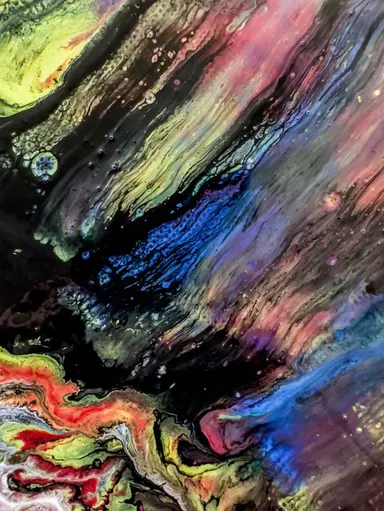
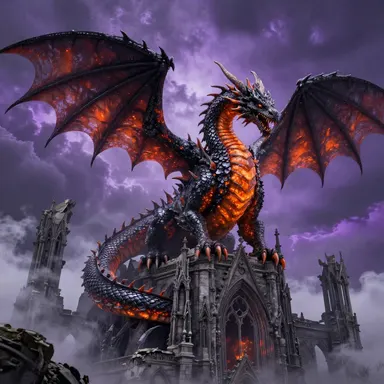
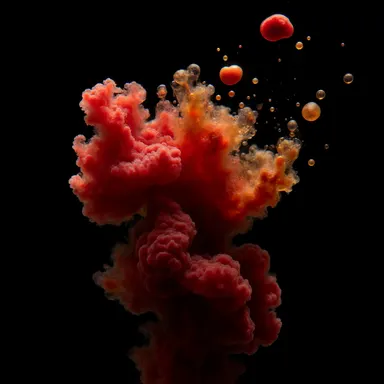
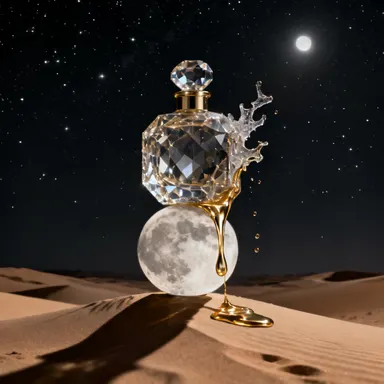
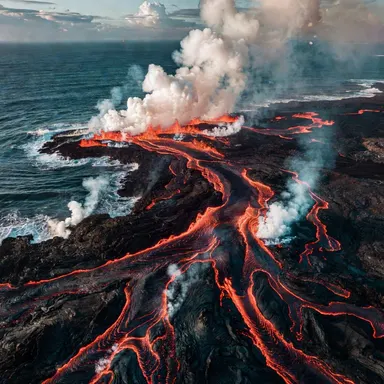
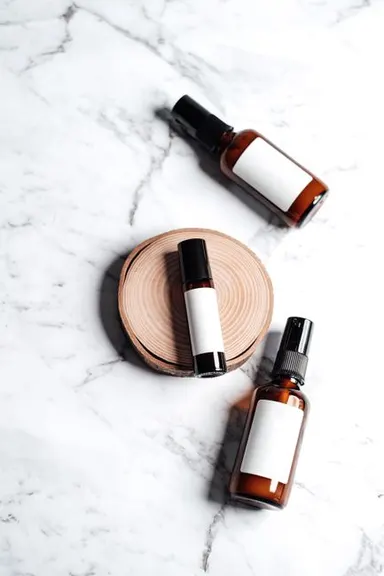
Made with this app
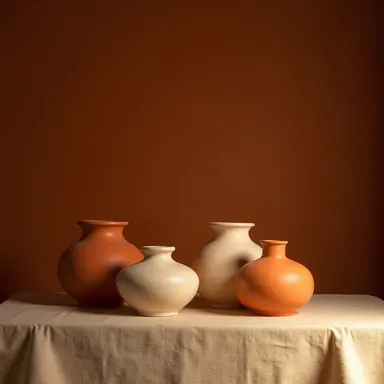

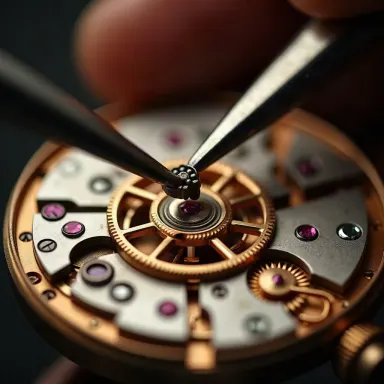

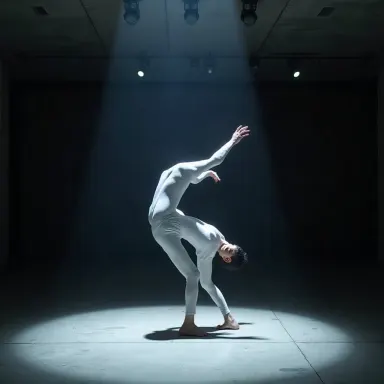
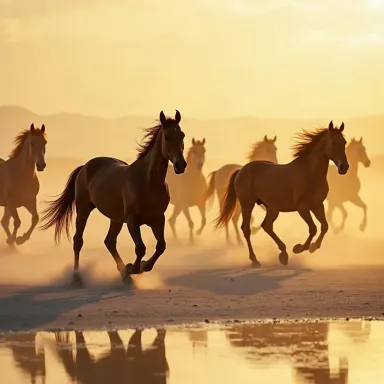
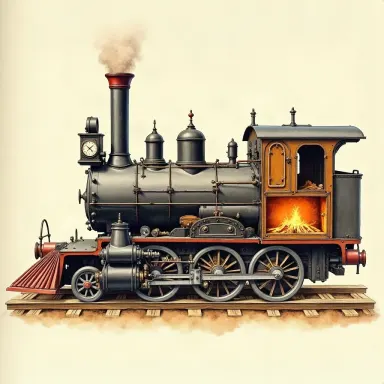


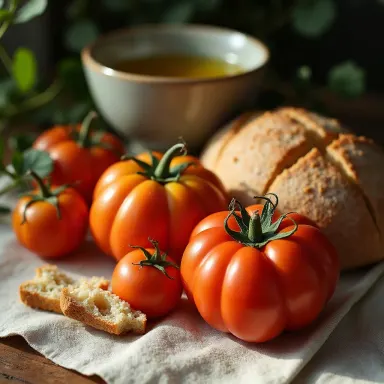

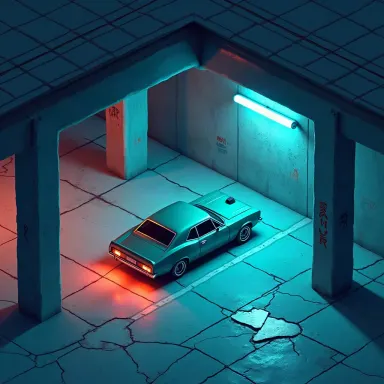
This app puts FLUX.1 Dev, Black Forest Labs' production-grade text-to-image model, directly in your hands. With 28 inference steps and an adjustable guidance scale, it delivers detailed, high-quality images suited to creative professionals, product designers, and marketers who need output they can actually use. Multiple aspect ratios and up to 1 megapixel resolution make it a reliable choice when the result needs to look polished from the first generation.
How to use this app
- 1
Describe what you want to create, or upload your source file.
- 2
Pick your options, then press Generate.
- 3
Watch your result appear in the gallery within moments.
- 4
Download, share, or generate again with a new idea.
What you can make
Product Concept Visualization
Designers developing packaging, product mockups, or concept art can use FLUX.1 Dev to generate crisp, presentation-ready imagery. The adjustable guidance scale lets you dial in how strictly the model follows your description, keeping results aligned with specific creative briefs rather than drifting into generic territory.
Marketing and Campaign Assets
Marketing teams can generate scene-based visuals for social campaigns, blog headers, or ad concepts. With up to 1 megapixel resolution and multiple aspect ratios, outputs can be framed for landscape banners, square posts, or portrait stories without requiring a separate crop.
Editorial and Publishing Illustration
Writers and editors who need original illustration to accompany articles or reports benefit from the model's ability to render complex scenes with coherent detail. The 28-step inference process produces images with finer texture and lighting than faster, lower-step alternatives.
Architecture and Interior Mood Boards
Architects and interior designers can describe spatial arrangements, material palettes, and lighting conditions to generate reference imagery for client presentations. FLUX.1 Dev handles structural and environmental detail well enough to serve as a credible mood board starting point.
Fine-Tuned Creative Iteration
When a concept needs several rounds of refinement, the guidance scale control allows systematic adjustment between loose interpretation and strict prompt adherence. This makes it practical to explore creative variations while maintaining a coherent visual direction across a set of images.
Prompt ideas to try
Why creators use this app
- 28 inference steps
- Adjustable guidance scale
- Multiple aspect ratios
- High quality output
Tips for better results
Use Guidance Scale Deliberately
A higher guidance scale pushes the model to follow your prompt more literally, while a lower value allows more creative interpretation. For precise product or architectural images, increase it. For mood-driven or artistic work, lower values often produce more visually interesting results.
Match Aspect Ratio to Final Use
Select your aspect ratio before generating rather than cropping afterward. FLUX.1 Dev composes images within the chosen frame, so a landscape ratio will distribute subject and background differently than a portrait ratio. Cropping after generation discards resolution you have already paid for.
Be Specific About Lighting and Material
The 28-step inference process resolves fine surface detail well. Prompts that name specific lighting conditions, such as overcast diffused light or golden-hour side lighting, and describe material properties like brushed metal or matte fabric, yield significantly more accurate and useful results.
Treat the First Output as a Draft
Because generation takes only 5 to 10 seconds, the most efficient workflow is to generate a first image, identify what needs adjusting in the prompt, then regenerate. Small wording changes, especially around composition and style, often produce large differences in the output.
When to choose this app
Choose this app when output quality and control matter more than raw speed. Compared to FLUX.1 Schnell, FLUX.1 Dev uses significantly more inference steps, producing images with finer detail and more faithful prompt adherence. Compared to Seedream 5.0 Lite, it offers explicit guidance scale adjustment, giving you a direct lever over how tightly the model interprets your description, which is valuable for production or client-facing work.
Frequently asked questions
What does the guidance scale actually control?
The guidance scale determines how closely the model adheres to your text prompt. A higher value produces images that follow your description more literally, while a lower value gives the model more freedom to interpret. Adjusting it is one of the most effective ways to steer FLUX.1 Dev toward the result you want without rewriting your entire prompt.
What is the maximum resolution this app can produce?
FLUX.1 Dev generates images up to 1 megapixel. The exact pixel dimensions depend on the aspect ratio you select, since the total pixel count is distributed across the chosen frame shape. This resolution is sufficient for most digital publishing, social media, and screen-based design work.
Can I change the number of inference steps?
The model runs at 28 steps by default, which is the configuration that produces its characteristic output quality. If the app exposes step control, reducing steps will speed up generation but typically softens fine detail. For production-quality results, the default 28-step setting is recommended.
Which aspect ratios are available?
The app supports multiple aspect ratios covering standard landscape, portrait, and square formats. Selecting the correct ratio before generating ensures the model composes the image appropriately for your intended use, whether that is a wide banner, a social media post, or a vertical mobile format.
How descriptive does my prompt need to be?
FLUX.1 Dev responds well to detailed prompts. Specifying subject, environment, lighting, materials, style, and intended mood in a single prompt consistently outperforms short or vague descriptions. The guidance scale can then be used to control how strictly those details are applied, giving you two complementary tools for directing the output.
Is this app suitable for generating text within images?
Text rendering in AI image models is generally imperfect, and FLUX.1 Dev is no exception. Short, simple words in large type have a better chance of appearing legible than full sentences or small captions. For designs where accurate text is critical, generated images are best used as backgrounds with text added in a separate design tool.
Which AI model powers this app?
This app runs on FLUX.1 Dev, available through Arteza with no separate account or setup.
Can I use the results commercially?
Yes. Content you generate is yours to use, subject to our content licenses.
How long does a generation take?
Most generations finish in under a minute, and you can watch progress live in the gallery.