Made with this app



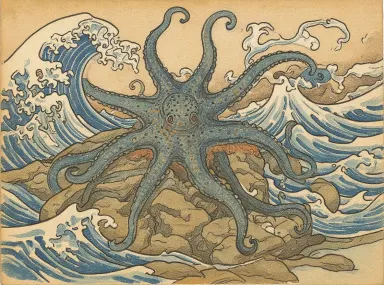






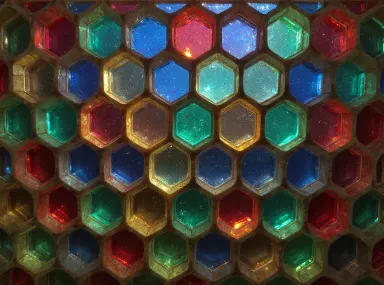



FLUX Kontext Pro, developed by Black Forest Labs, is a text-guided image editing app built for creators who need precise, instruction-based control over existing images. Upload a photo or illustration, then describe the change you want: swap a background, transfer an artistic style, keep a character visually consistent across frames, or refine typographic elements. It suits product designers, illustrators, social media teams, and anyone who needs targeted edits rather than generating images from scratch.
How to use this app
- 1
Describe what you want to create, or upload your source file.
- 2
Pick your options, then press Generate.
- 3
Watch your result appear in the gallery within moments.
- 4
Download, share, or generate again with a new idea.
What you can make
Product Photo Retouching
Upload a product shot and instruct FLUX Kontext Pro to change the background to a clean studio gradient, adjust lighting mood, or remove distracting props. The model applies local edits precisely, leaving the product itself untouched while transforming the surrounding context.
Consistent Character Across Scenes
Illustrators building comics or storyboards can feed a character reference image and direct the model to place that character in a new environment or pose. Character consistency keeps facial features, clothing, and proportions stable across multiple edited outputs.
Artistic Style Transfer
Take a photograph and instruct the model to rerender it in the visual language of a specific art movement, such as flat vector illustration or impressionist oil painting. Style transfer rewrites the image's aesthetic while preserving its underlying composition and subject.
In-Image Typography Edits
Replace or refine text that appears inside a banner, poster, or mockup by describing exactly what the new copy should say and how it should look. FLUX Kontext Pro handles typography as an editable element rather than a fixed part of the pixel data.
Scene and Environment Swaps
Change the time of day, season, or setting of a photograph by writing a plain-language instruction. The model interprets the existing image structure and applies targeted regional changes, so a daytime street scene can become a rain-slicked evening shot without rebuilding the image.
Prompt ideas to try
Why creators use this app
- Text-guided editing
- Style transfer
- Character consistency
- Typography
Tips for better results
Be Specific About Scope
FLUX Kontext Pro supports local edits, so tell it exactly which region to change. Phrases like 'change only the background' or 'adjust the jacket color without altering the face' help the model target the right area and leave everything else intact.
Name the Style Precisely
Style transfer produces stronger results when you describe a style with concrete visual attributes rather than vague adjectives. Instead of 'make it artistic,' try 'render in flat vector style with bold outlines and no gradients.' Specific descriptors anchor the model's interpretation.
Anchor Character Consistency
When editing for character consistency across multiple images, include a brief description of the character's defining features in every prompt, such as hair color, clothing, and any distinctive accessories. This reinforces the model's reference point across separate editing sessions.
Describe Typography in Context
For typography edits, specify font style, weight, and how the text should relate to its surroundings. Mentioning details like 'white bold uppercase text fitting the existing sign shape' gives FLUX Kontext Pro the spatial and stylistic context it needs for clean results.
When to choose this app
Choose this app when your starting point is an existing image that needs targeted changes rather than a blank canvas generation. FLUX Kontext Pro's combination of local editing, character consistency, and typography control makes it the right tool for iterative creative work. Seedream v4.0 Edit handles generation-side tasks differently, while Runway Gen-4 Image and Runway Gen-4 Image Turbo lean toward cinematic and motion-adjacent workflows. For instruction-based precision edits on photos, illustrations, or mockups, FLUX Kontext Pro is the focused choice.
Frequently asked questions
Can I make multiple targeted changes in a single instruction?
Yes. You can describe several distinct edits in one prompt, such as changing the background, adjusting a color, and replacing text simultaneously. For complex scenes, breaking changes into sequential edits often produces cleaner results, since each pass can refine what the previous one established.
How does character consistency work across different edits?
Character consistency is a declared feature of FLUX Kontext Pro, meaning the model tracks key visual attributes of a subject across an editing session. For best results, upload the same reference image each time and include a brief description of the character's defining traits in every prompt.
What kinds of typography edits are supported?
The model can replace, rewrite, or restyle text that appears within an image, such as signs, labels, banners, or posters. It treats typography as an editable element. You can specify font style, weight, case, and spatial fit, though highly ornate or extremely small text may require iterative refinement.
Does style transfer affect the entire image or just part of it?
By default, style transfer applies to the full image. If you want to preserve a specific region, such as a product or face, while changing the surrounding aesthetic, specify that boundary clearly in your prompt. The local editing capability lets you protect areas you want unchanged.
What image formats and sizes work best as input?
FLUX Kontext Pro works with standard image formats. Providing a clear, well-lit source image at a reasonable resolution gives the model better signal to work from. Heavily compressed, very dark, or low-resolution inputs can limit how precisely the model interprets and edits the content.
Can I use this app to iterate on the same image multiple times?
Yes. You can download an edited output and re-upload it as the source for a subsequent edit, building up changes incrementally. This iterative workflow is well suited to complex projects where you want to refine one element at a time rather than attempting all changes in a single pass.
How much does it cost?
Each generation costs 1 credit. New accounts get free credits to try it out.
Which AI model powers this app?
This app runs on FLUX Kontext Pro, available through Arteza with no separate account or setup.
Can I use the results commercially?
Yes. Content you generate is yours to use, subject to our content licenses.
How long does a generation take?
Most generations finish in under a minute, and you can watch progress live in the gallery.