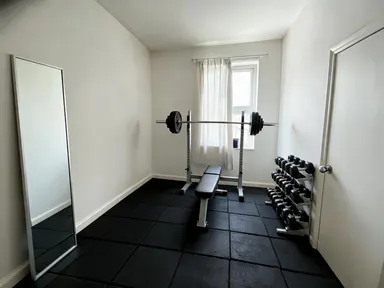
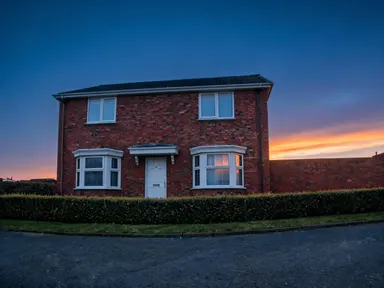
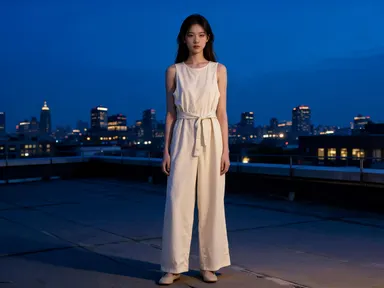
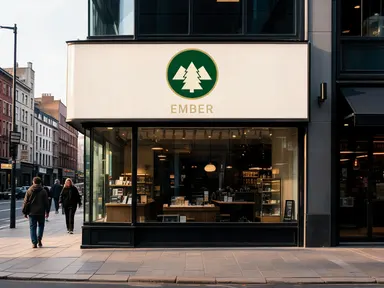
Made with this app



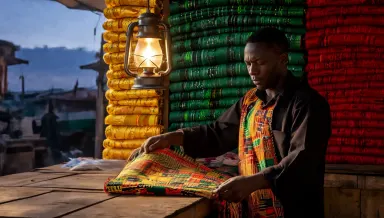
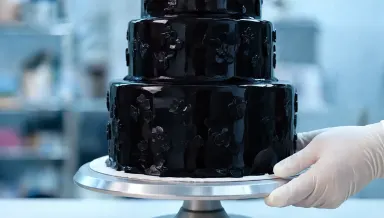


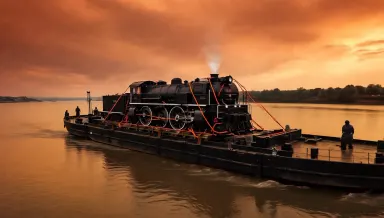
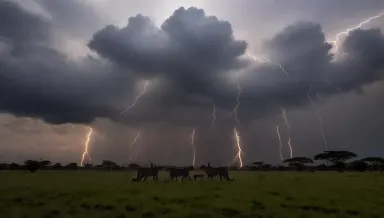





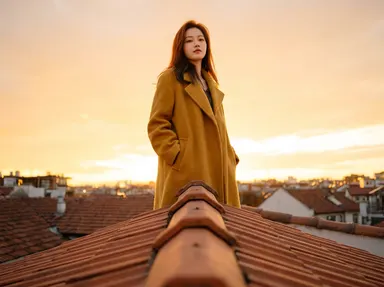
This app uses Runway Gen-4 Image Turbo to generate new images guided by a reference you upload. Upload any image as a style anchor, write a prompt describing what you want, and get results fast enough to run many variations in a single session. It suits designers, art directors, and content creators who need to explore visual directions quickly without starting from a blank canvas each time.
How to use this app
- 1
Describe what you want to create, or upload your source file.
- 2
Pick your options, then press Generate.
- 3
Watch your result appear in the gallery within moments.
- 4
Download, share, or generate again with a new idea.
What you can make
Rapid Style Exploration
Upload a mood board image or a single strong visual reference and iterate through multiple directions in minutes. Runway Gen-4 Image Turbo returns results fast enough that you can evaluate ten variations before committing to a creative route, saving hours of manual exploration.
Consistent Visual Branding
Feed the model a reference image that captures your brand's color palette and texture language, then generate a series of campaign visuals that share the same visual DNA. Every output stays anchored to the reference, keeping batch results coherent without manual correction.
Concept Presentation for Clients
Turn a rough reference image into a polished concept image at any resolution your presentation requires. Because generation is fast, you can show a client three distinct directions in the same meeting and refine the chosen one on the spot.
Style Transfer Across Subjects
Take the visual style of one image and apply it to an entirely different subject through your prompt. Runway Gen-4 Image Turbo treats the reference as a style guide, not a template, so the output depicts your new subject while inheriting the tone, texture and color of the reference.
Batch Asset Generation
When a project calls for a set of images that look like they belong together, a single reference image keeps every batch output visually consistent. Generate product scene variations, editorial illustrations or social media assets without restyling each one manually.
Prompt ideas to try
Why creators use this app
- Fast generation
- Reference-guided
- Any resolution
- Style transfer
Tips for better results
Choose a Strong Reference
The reference image sets the visual rules for every output. Pick one that clearly represents the style, palette or texture you want rather than a complex scene with competing aesthetics. A focused reference produces more consistent, usable results across multiple generations.
Use Fast Speed for Iteration
Runway Gen-4 Image Turbo is built for speed, so treat early generations as drafts. Run several prompt variations quickly to identify which direction works, then refine your winning prompt rather than laboring over a single output from the start.
Specify Resolution in Your Prompt
The model supports any resolution, so name the aspect ratio or intended use in your prompt or settings. A square crop for social media, a wide cinematic ratio for a banner, or a tall vertical for print all benefit from being stated explicitly before you generate.
Describe Style and Subject Separately
Write prompts that separate what the image depicts from how it should look. Describe the scene in plain terms first, then add style notes that echo what the reference already provides. This keeps the model's style transfer anchored to the reference rather than drifting toward generic aesthetics.
When to choose this app
Choose this app when your starting point is a visual style you want to carry forward, not a specific scene you want to edit in place. AI Room Converter takes a real room and keeps its walls, windows and doors while changing its purpose. AI Sky Replacement swaps the sky in an existing outdoor photo and adjusts the light to match. This app does something different: it reads a reference image for its visual language and then generates entirely new images in that style, at any resolution, fast enough to compare many variations before committing to one direction.
Frequently asked questions
What kind of reference image works best with this app?
A reference that has a clear, dominant visual style works best. Think a consistent color palette, a distinctive texture or a recognizable rendering technique. Busy or compositionally complex images can confuse the style transfer, while a single strong visual statement gives the model a clear rule to follow across your outputs.
Does the reference image appear in the output, or does only its style carry over?
Only the style carries over. Runway Gen-4 Image Turbo reads the reference for visual qualities like color, texture and tone, then applies those qualities to the subject described in your prompt. The output is a new image, not a blend or composite of the reference and your prompt subject.
Can I use the same reference image for an entire batch of different subjects?
Yes. Uploading one reference and running it against multiple prompts is exactly what this app is designed for. Each output will share the visual language of the reference while depicting a different subject, which makes batch generation of thematically consistent assets straightforward.
What resolution should I request for professional print or large-format output?
The model supports any resolution, so specify the dimensions or aspect ratio that match your final use in your prompt or output settings. For print or large-format work, state the required ratio clearly. Generating at the target resolution from the start avoids quality loss from upscaling later.
How specific should my prompt be if the reference image already carries a lot of style information?
Focus your prompt on the subject, setting and any compositional details you want, and let the reference handle the style. You do not need to describe the style in the prompt if it is already clear in the reference. Over-specifying style in the prompt can compete with the reference rather than reinforce it.
Can I use a photograph as a reference to generate illustrated or painted outputs?
Yes. You can supply a photographic reference and prompt the model toward an illustrated, painted or graphic style. The reference anchors qualities like composition, color temperature or subject framing, while the prompt steers the rendering technique. The two inputs work together rather than one overriding the other.
How much does it cost?
Each generation costs 1 credit. New accounts get free credits to try it out.
Which AI model powers this app?
This app runs on Runway Gen-4 Image Turbo, available through Arteza with no separate account or setup.
Can I use the results commercially?
Yes. Content you generate is yours to use, subject to our content licenses.
How long does a generation take?
Most generations finish in under a minute, and you can watch progress live in the gallery.