Made with this app
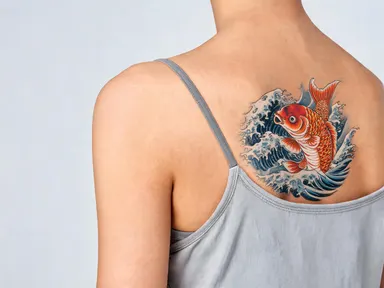
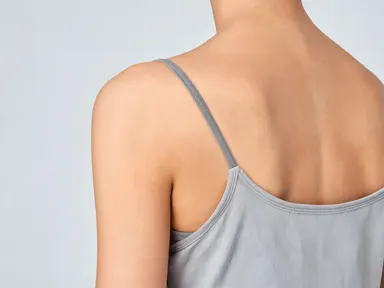
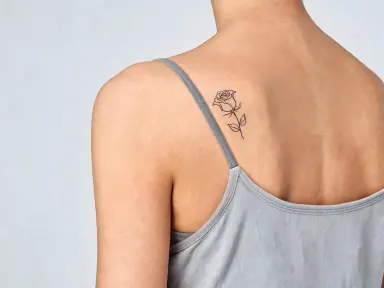
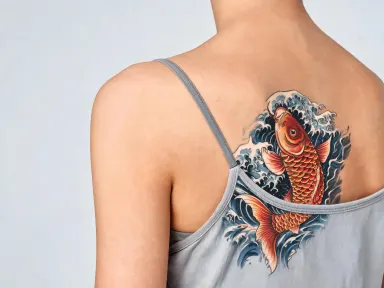
AI Tattoo Visualizer lets you see exactly how a tattoo will look on your own body before you commit to the needle. Upload a photo of your arm, shoulder or leg, pick one of twenty-four designs spanning black ink, fine line and colour styles, and the app places a photorealistic tattoo directly onto your skin at high resolution. It is built for anyone exploring their first piece, planning a sleeve or simply curious whether a specific style suits their body placement.
How to use this app
- 1
Upload your file. There is no prompt you have to write.
- 2
Pick a look from the visual library, add a note of your own if you want one, then press Generate.
- 3
Watch your result appear in the gallery within moments.
- 4
Download, share, or generate again with a new idea.
What you can make
First Tattoo Style Decisions
Someone considering their first tattoo can upload a bare forearm photo and cycle through bold blackwork, fine line botanical and colour realism options side by side. Seeing each style on their actual skin tone removes the guesswork of imagining a flash sheet on their body.
Placement Planning for Sleeves
Artists and collectors mapping out a sleeve can test how a Polynesian tribal band sits at the wrist versus a rising phoenix on the upper arm. The high-resolution output is detailed enough to share with a tattoo artist as a clear visual reference before the first session.
Gifting and Couple Consultations
Partners choosing matching tattoos can each upload their own photo and apply the same design, such as the paired swallows or the constellation fine line, to compare how it reads on different skin tones and body shapes before booking a joint appointment.
Style Exploration Without Commitment
Someone drawn to Japanese irezumi can upload a shoulder photo and try the coiled dragon alongside the koi carp swimming through stylised waves, letting the visual result confirm which narrative and colour palette genuinely excites them rather than relying on studio wall prints.
Social Sharing and Concept Mood Boards
Content creators documenting their tattoo journey can generate clean, high-resolution visualisations to share on social media or compile into a mood board for their artist consultation, giving followers and collaborators a concrete look at the planned piece.
Shots to try
Tips for better results
Shoot in Natural Light
Upload a photo taken in even natural light with no harsh shadows across the placement area. The app reads skin tone and contour to place the design convincingly, and flat artificial lighting or deep shadow can soften the realism of the final result.
Match Pose to Placement
Extend or relax the limb the way it would look when the tattoo is visible, since the app wraps the design around the surface it sees. A slightly bent arm gives a more natural result than a stiff pose, especially for curved wrap designs like the tribal band.
Use the Optional Text Box for Specifics
After choosing your library design, use the free text box to note a placement detail, a size preference or something to keep out of frame. You might write that you want the design centred on the outer forearm only, or that a scar area should be avoided.
Test Multiple Styles in One Session
Because the library covers black ink, fine line and colour categories, run the same photo through two or three contrasting styles, such as bold American traditional, fine line botanical and watercolour, before deciding. Seeing them side by side on your own skin is more informative than comparing studio examples.
When to choose this app
AI Tattoo Visualizer does one specific job that no other app in the Arteza suite is built for: placing a curated tattoo design onto a photo of your own body with realistic skin integration. FLUX Kontext Pro edits images with text instructions, which means building a tattoo concept from scratch through written prompts rather than choosing from a vetted style library. AI Camera Angle Changer reshoot a scene from a new point of view rather than adding any element to the image. When your goal is to preview a finished, style-accurate tattoo on your own skin before a real appointment, this app is the direct tool for that decision.
Frequently asked questions
Which body placements work best with this app?
The app is optimised for arms, shoulders and legs, as the tagline reflects. These placements give a clear, relatively flat or gently curved surface that lets the design sit convincingly on the skin. Very small areas like fingers or the behind-ear placement may not show the design in enough detail at standard photo distance.
Can I see how a design looks on dark or heavily tanned skin?
Yes. The app reads the skin tone in your uploaded photo and integrates the design accordingly. Uploading your own photo rather than a stock image is the most reliable way to see how a specific ink style, particularly white ink or soft watercolour washes, will read against your actual complexion.
How do the twenty-four library designs differ from each other?
The library spans four broad style families: bold blackwork and tribal, fine line black ink, colour realism and colour illustrative. Within each family, designs vary by subject, scale and technique, from dense Polynesian geometric banding to delicate single weight fine line botanicals, so the choice affects both the visual weight and the placement suitability.
Can I request a different subject within the same style?
The library choice sets the style and subject together. However, the optional free text box below the library lets you add one specific instruction, such as a pose adjustment, a size note or an element to exclude. For an entirely different subject in a given style, choosing the closest library option and noting your variation in the text box is the best approach.
Is the output detailed enough to show a tattoo artist?
The app renders at 1K resolution or above, which produces enough detail for the line weights, shading gradients and colour areas to read clearly. Most artists will treat it as a placement and style reference rather than final line art, but it communicates intent more precisely than a verbal description or a generic flash image.
What file formats can I upload?
The upload area accepts JPG, PNG, WebP and GIF files. Drag the file directly into the upload area or pick it from your device. A clear, in-focus image taken at arm's length or by a second person gives the app the most surface detail to work with, especially for designs with fine linework or subtle shading.
How much does it cost?
Each generation costs 1 credit. New accounts get free credits to try it out.
Do I need any editing skills?
No. Upload your photo, pick the look you want from the library, and the app writes the full instruction for you behind the scenes. There is nothing to install and nothing to configure. A small optional box lets you add one line in your own words, but the app works without it.
Can I use the results commercially?
Yes. Content you generate is yours to use, subject to our content licenses.
How long does a generation take?
Most generations finish in under a minute, and you can watch progress live in the gallery.