Made with this app
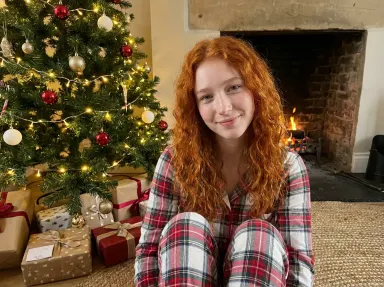
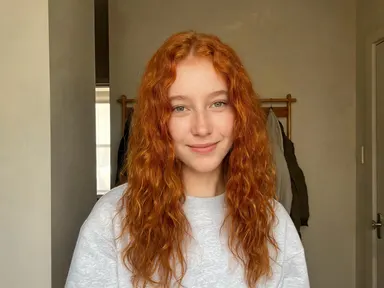


AI Christmas Photos takes a single photograph of you and turns it into a finished festive portrait, dressed, lit and placed in a holiday scene that suits the moment you pick from the library. It is built for anyone who wants a convincing Christmas photo without a studio, a costume or a second shoot: a portrait for the front of a card, a seasonal profile photo, or anyone who simply wants to see themselves somewhere magical this December. Your face, hair, glasses and jewellery carry through exactly as they are; the outfit and scene do the work.
How to use this app
- 1
Upload your file. There is no prompt you have to write.
- 2
Pick a look from the visual library, add a note of your own if you want one, then press Generate.
- 3
Watch your result appear in the gallery within moments.
- 4
Download, share, or generate again with a new idea.
What you can make
Holiday Cards Worth Keeping
Choose "By the Tree" or "Christmas Morning" to produce a warm, studio-quality portrait that prints cleanly on a card. The lit tree, wrapped gifts and soft pyjamas read immediately as Christmas, giving family and friends something they will actually pin up rather than recycle.
Social Media Profile Updates
Swap your profile photo for the season without arranging a shoot. "Santa Hat Portrait" places you in front of a deep red studio backdrop with soft bokeh, producing a clean, shareable headshot that photographs well at any crop size from a thumbnail to a full post.
Personal Gifts and Prints
A framed print of yourself in "Cabin Porch" or "Festive Street" makes a gift that is specific to one person. Because the face is preserved accurately and the scene is rendered as one consistent photograph, the result frames well without reading as a cut-and-paste composite.
Team and Brand Christmas Posts
Businesses wanting a seasonal look for their social channels can run a consistent visual by putting each team member through the same tile. "Fireside Cocoa" or "Gingerbread Baking" produce warm, domestic scenes that feel personal rather than corporate.
Festive Storytelling and Creative Projects
Writers, illustrators and content creators building holiday narratives can use "Bringing the Tree Home" or "Falling Snow" as reference portraits or scene-setters. Each tile creates a fully realised environment, not just a costume change, so the result reads as a still from a longer story.
Shots to try
Tips for better results
Start With a Clear Face
The app preserves your face by reading it closely from the source photo. A sharp, evenly lit image taken from the chest up gives it the most detail to hold on to. Blurry photos, heavy filters and strong side lighting all reduce how closely the result resembles you.
Let the Tile Do the Heavy Work
Each tile sets the outfit, scene and lighting as one complete moment. The result looks most natural when you let it do that job rather than trying to steer it far from its description. The optional box works best for small refinements: a scarf colour, a time of day, one detail you want kept or left out.
Set the Frame and the Quality for the Job
The portrait 3:4 frame is the default and suits cards, prints and profile photos. If the image is destined for a wide banner or a post header, switch the aspect ratio to 16:9 before generating so the scene is composed for that shape from the start, rather than cropping a portrait down afterwards. Directly beneath the aspect row is a Quality row offering HD, 2K and 4K. HD is plenty for a card sent by email or a profile picture, but if the portrait is going to a print shop or a large framed card, choose 2K or 4K before you generate. Those settings cost more credits, and they are the difference between a card that holds up in the hand and one that does not.
Try Two Tiles for the Same Photo
Because the scene and outfit change entirely between tiles, two different choices from the same source photo produce two distinct portraits. Running "Christmas Morning" and "Falling Snow" from the same upload gives you an indoor and an outdoor option to compare before deciding which suits your use.
When to choose this app
AI Christmas Photos is the right choice when the subject of the image is a specific person and the goal is a convincing festive portrait of them. AI Sky Replacement works outdoors and changes the sky and light across the whole existing scene, while AI Room Converter keeps walls, windows and doors exactly in place and refits the room around them. Neither is built to place a person into a new seasonal scene and preserve their face. AI Christmas Photos does exactly that one job, with the face, hair, glasses and jewellery held unchanged through every transformation.
Frequently asked questions
How closely will the result look like me?
The app is built specifically to carry your face through unchanged: the same features, proportions, skin tone, hair, glasses and jewellery appear in the result. A clear, well-lit, front-facing photo from the chest up gives it the most to work from. Heavily filtered or low-resolution source photos reduce the likeness.
Can I use it for a photo of two people together?
The app works from one photograph of one person. If you want a holiday portrait of two people together, the photo together app is built for that purpose: upload each photo there and describe the festive scene you want them both placed in.
Will my background from the original photo appear in the result?
No. The app invents a complete new scene to match the tile you choose, a decorated room, a snowy street, a frozen pond. Whatever was behind you in the source photo is replaced entirely. The scene is drawn from the tile's description and cannot be replaced with a specific place of your own.
Can I add text or a name to the finished portrait?
The app does not place any text, lettering, names, dates or captions onto the image. The result is a clean portrait with no writing on it. If you need text on the final card or print, that is best added in a design tool after you have saved the image.
What does the optional box under the library actually do?
It lets you steer small details within the scene the tile has set: the colour of a scarf, whether the light feels more like early evening or late night, or a specific detail you want kept. It cannot replace the tile's outfit or scene, but it is useful for making the result feel more personal.
What photo formats can I upload?
The app accepts JPG, PNG, WebP and GIF files. Drag the file onto the upload area or pick it from your device. One photo of one person, showing them clearly from the chest up or closer, gives the best results.
Do I need any editing skills?
No. Upload your photo, pick the look you want from the library, and the app writes the full instruction for you behind the scenes. There is nothing to install and nothing to configure. A small optional box lets you add one line in your own words, but the app works without it.
Can I use the results commercially?
Yes. Content you generate is yours to use, subject to our content licenses.
How long does a generation take?
Most generations finish in under a minute, and you can watch progress live in the gallery.