Made with this app
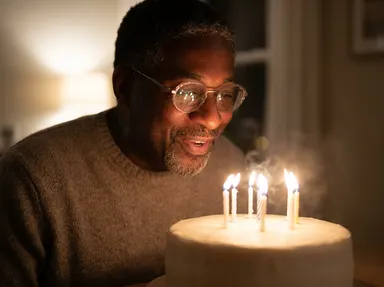
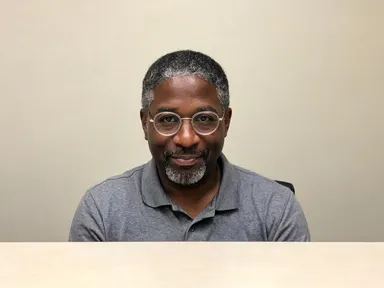

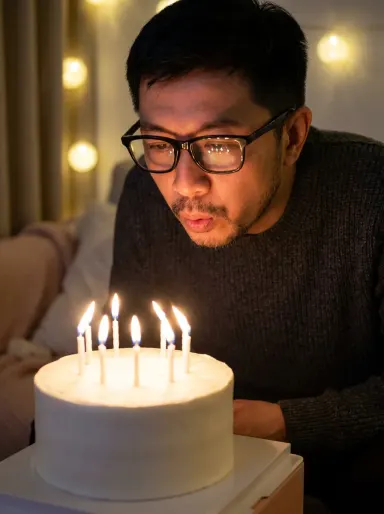
AI Birthday Photos turns a single portrait photograph into a polished birthday scene, placing you in a moment that fits the occasion: blowing out candles, raising a glass on a rooftop, or laughing through a confetti burst. You upload one clear photo of yourself, pick a scene from the library, and the app builds the full picture around your face, hair and features, unchanged. It is built for anyone who wants a personal, celebration-ready portrait without a photographer, a party or a costume.
How to use this app
- 1
Upload your file. There is no prompt you have to write.
- 2
Pick a look from the visual library, add a note of your own if you want one, then press Generate.
- 3
Watch your result appear in the gallery within moments.
- 4
Download, share, or generate again with a new idea.
What you can make
A birthday post worth sharing
Upload a recent headshot, choose "Rooftop Toast", and get back a golden-hour portrait that reads as a genuine celebratory photograph. Your face stays exactly as it is, and the city skyline and raised glass do the work of communicating the occasion.
Sending a personalised birthday card
Choose "Make a Wish" for the classic candle-blowing image, then print or send it digitally in place of a generic card. Because the face in the image is yours, the card carries a warmth that a stock photograph never could.
Marking a milestone birthday remotely
When family or friends cannot be there in person, a portrait from "Candlelit Dinner" or "Sparkler at Dusk" gives them a vivid image of you in the moment, dressed for the occasion, to share across a group chat or frame at home.
Creating content for a birthday campaign
Brands running seasonal birthday campaigns can use a team member's photo to generate a consistent, on-brand celebratory portrait, ready for print or digital placement without an on-location shoot.
Gifting a portrait to someone else
Upload a photo of a friend or family member with their permission, pick "Garden Party" or "Balloon Room", and present the result as a personalised keepsake. The app keeps their features intact and dresses them for the celebration.
Shots to try
Tips for better results
Upload a clear, close portrait
The app reads your face, skin tone, hair and any glasses or jewellery from the photo you upload. A sharp image taken from the chest up in decent light gives it the most detail to work with, and the result will reflect that clarity.
Let the library tile set the scene
Each tile in the library, from "Confetti Burst" to "Balloons on the Beach", decides both the outfit and the setting together as one composed moment. Choose the tile that fits the feeling you want; the app handles everything else.
Use the optional box for small details
The free text box under the library is a good place to steer fine points: the colour of the balloons, how many candles appear on the cake, or whether you would prefer the background to feel warmer or cooler. Keep it to one clear detail at a time.
Set the shape and the quality to fit where it will live
The app defaults to a 3:4 portrait, which suits framed prints and most feeds. Switch to 1:1 for a profile picture, 9:16 for a story, or 16:9 if the image will sit as a wide header. Choosing the shape before you generate avoids cropping into the scene afterwards. The Quality row below the aspect row settles how much detail the file carries: HD covers anything that will only ever be looked at on a screen, and 2K or 4K, which cost more credits, are the ones to reach for when the picture is going to a printed card or a framed gift.
When to choose this app
AI Birthday Photos is the right choice when the subject is a specific real person and the output needs to read as a portrait of them, not a generic scene. AI Sky Replacement changes the sky above an existing photo while keeping everything in the frame beneath it. AI Room Converter reworks the interior of a photographed space while keeping the walls and windows in place. Neither is built to dress a person for an occasion or to construct a celebratory scene around their face. This app does exactly that, and nothing else.
Frequently asked questions
Will the app keep my glasses, earrings or other jewellery?
Yes. The app preserves your face, hair, skin tone, glasses and any jewellery visible in the photo you upload. The one thing it deliberately replaces is your clothing, dressing you instead in the outfit that fits the scene you choose from the library.
Can I get a birthday picture of two people together?
AI Birthday Photos works from one photo of one person. If you want a scene with two people together, the photo together app is designed for that. Upload each person's photo there and describe the scene you have in mind.
Will there be a name, age or message written anywhere in the image?
No. The app produces no text anywhere in the result. Cakes are plain iced with candles only, balloons are solid colours, and no banners, captions or numbers appear in the scene. If you need text added, that step would need to happen in a separate editing tool after you download the image.
Can I choose my own background or setting?
The background is part of the scene the library tile defines, not a separate choice. "Sparkler at Dusk" places you in a garden at dusk with string lights; "Garden Party" puts you at a sunny outdoor table. The optional text box can steer small details within that scene, but the setting itself comes from the tile.
What kind of photo should I upload for the best result?
A sharp photo showing your face and at least the top of your chest, taken in reasonable light. The clearer the detail in your face, hair and any accessories, the more faithfully the app carries those features into the birthday portrait. Avoid heavily filtered or very low-light source images.
Does the app work with photos of older adults as well as younger people?
Yes. The app keeps the person's actual features, including age, skin tone and hair colour, exactly as they appear in the uploaded photo. It does not smooth or alter the face. The result is a birthday portrait of that person as they are, placed in the scene you choose.
Do I need any editing skills?
No. Upload your photo, pick the look you want from the library, and the app writes the full instruction for you behind the scenes. There is nothing to install and nothing to configure. A small optional box lets you add one line in your own words, but the app works without it.
Can I use the results commercially?
Yes. Content you generate is yours to use, subject to our content licenses.
How long does a generation take?
Most generations finish in under a minute, and you can watch progress live in the gallery.