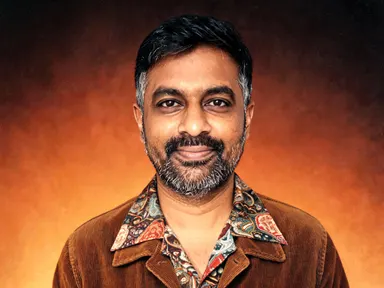
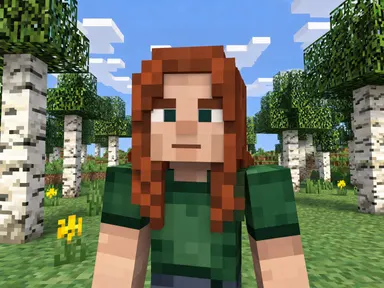
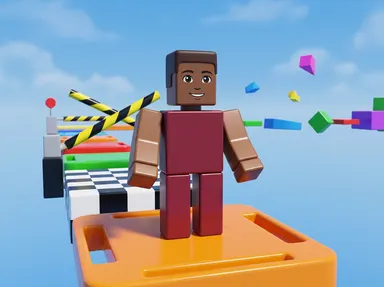
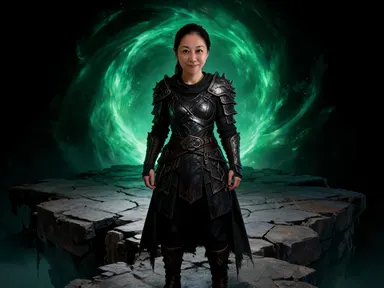
Made with this app
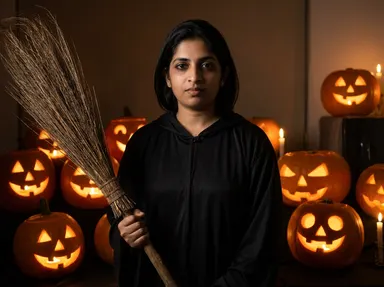
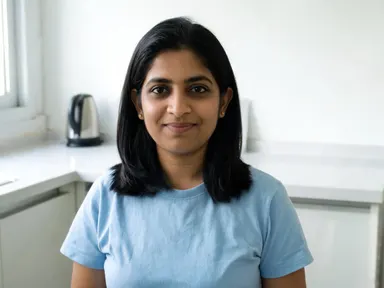
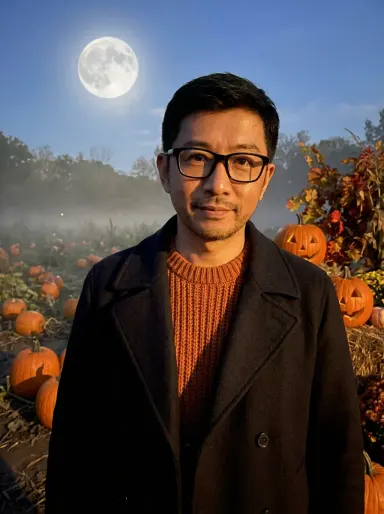
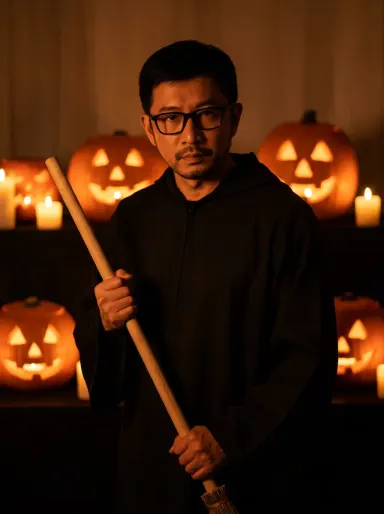
AI Halloween Photos turns a single photograph of you into a finished Halloween portrait. Upload a clear photo, pick one of the ten scenes from the library, and the app places you inside that moment: same face, same hair, same glasses, dressed in the costume the scene calls for. The result is a sharp, detailed portrait suited to cards, social campaigns or personal keepsakes. It suits anyone who wants a polished Halloween portrait without a costume, a photographer or a studio.
How to use this app
- 1
Upload your file. There is no prompt you have to write.
- 2
Pick a look from the visual library, add a note of your own if you want one, then press Generate.
- 3
Watch your result appear in the gallery within moments.
- 4
Download, share, or generate again with a new idea.
What you can make
Social Media Profile Updates
Swap your profile photo for a seasonal Halloween portrait that still looks unmistakably like you. Because the face is never painted or masked, friends recognise you instantly. Pick "Halloween Party" for a warm, sociable feel, or "Pumpkin Patch" for something atmospheric and moody.
Personalised Halloween Cards
A portrait of yourself printed inside a card is far more memorable than a generic illustration. The output is sharp enough to stay crisp at card print sizes. "Witch's Candlelight" or "Misty Forest" both give a scene composed enough to sit well on card stock.
Marketing and Campaign Imagery
Brands running Halloween promotions can place a real person, such as a founder or brand ambassador, into a consistent seasonal visual. The results are clean enough to go straight to ad platforms, email headers or printed display without a separate retouching step.
Costume Inspiration Without the Try-On
Not sure which aesthetic suits you this year? Upload one photo and run it through two or three scenes from the library. Comparing "Vampire's Staircase" with "Haunted Manor" takes a few minutes and lets you see yourself in each mood before committing to fabric or a booking.
Seasonal Content for Creators
Content creators who post regularly need seasonal variety without a full production day. AI Halloween Photos provides ten distinct scenes with different lighting moods, from the firelit warmth of "Night Bonfire" to the cold mist of "Pumpkin Patch", giving a content bank from a single source photo.
Shots to try
Tips for better results
Upload a Clear, Close Crop
The app works from one person shown clearly from the chest up or closer. A photo where your face fills a good portion of the frame gives the app the detail it needs to keep your features accurate in the final portrait. Avoid group shots or photos where you are distant from the camera.
Choose the Scene for the Mood First
Each library tile sets both the costume and the environment together as one composed moment. Think about the final feeling you want: the cosy warmth of "Pumpkin Carving", the eerie stillness of "Haunted Manor", or the sociable energy of "Halloween Party". Pick the tile, then use the optional box for small adjustments.
Use the Optional Box for Details, Not Direction
The optional instructions box is best for small specifics: the colour of a scarf, how heavy the mist sits in the scene, whether you want the lantern held higher. It cannot change the core costume or the setting, which are fixed by the tile, but it can personalise details within that moment.
Set the Aspect and the Quality for Where It Will Live
The app defaults to a 3:4 portrait, which suits profile photos, cards and prints. If the picture is destined for a banner or a wide header, choose a wider aspect from the aspect options before generating; the scene is composed fresh for the shape you pick, so choosing it up front beats cropping afterwards. The Quality row underneath does the same job for detail: HD is right for anything that stays on a screen, while 2K or 4K is worth the extra credits when the portrait is heading for a printed card, a poster or a party invitation people will hold.
When to choose this app
AI Halloween Photos is the right choice when the subject is a real, specific person and the result needs to look like a photograph of them. AI Sky Replacement changes the sky and light above an existing outdoor scene, and AI Room Converter refits an existing room while keeping its walls and windows. Neither of those puts a person in costume. This app does one thing those cannot: it takes someone's actual face and places it inside a fully composed Halloween scene, costume and setting together, in a single generated photograph.
Frequently asked questions
Will my face be painted or covered in the result?
No. The app keeps your face fully visible in every scene. There is no face paint, no mask and no prosthetic. The Halloween character is communicated entirely through the costume and the environment the tile provides, so the portrait is always recognisably you.
Can I use a photo of myself wearing glasses or jewellery?
Yes, and the app preserves them. Glasses, earrings, rings and other personal items visible in your uploaded photo are carried through to the result. They are treated as part of your appearance rather than as clothing, which means they stay while the outfit changes.
What happens to the background of my original photo?
The background is replaced entirely by the scene the tile describes. Whether your photo was taken in a kitchen, an office or outdoors, the final portrait shows the setting that belongs to the chosen moment, such as the glowing shelves and bats of "Halloween Party" or the foggy trees of "Misty Forest".
Can I get a Halloween portrait of two people together?
AI Halloween Photos works from one photograph of one person. For a picture of two people together in a Halloween scene, the photo together app is designed for that purpose. You would upload each person's photo there and describe the shared scene you want.
What file formats can I upload?
The app accepts JPG, PNG, WebP and GIF files. Any of those formats dragged into the upload area or selected from your device will work. The most important thing is not the format but the clarity of the photo: a sharp, well-lit image with your face visible from the chest up gives the best result.
Can the optional text box add writing or a caption to the image?
No. The app does not place text, lettering, numbers, logos or any written element anywhere in the output, regardless of what the optional box contains. That restriction applies to the scene as a whole. The box is useful for visual details such as colours, textures or the intensity of atmospheric effects like mist or firelight.
Do I need any editing skills?
No. Upload your photo, pick the look you want from the library, and the app writes the full instruction for you behind the scenes. There is nothing to install and nothing to configure. A small optional box lets you add one line in your own words, but the app works without it.
Can I use the results commercially?
Yes. Content you generate is yours to use, subject to our content licenses.
How long does a generation take?
Most generations finish in under a minute, and you can watch progress live in the gallery.