Made with this app
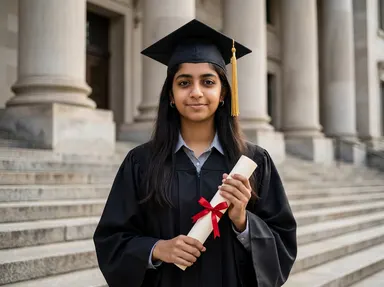
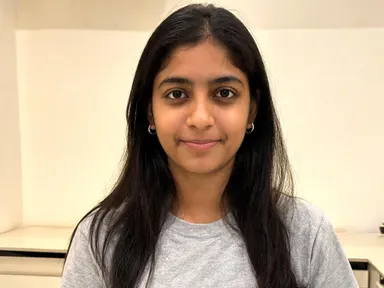
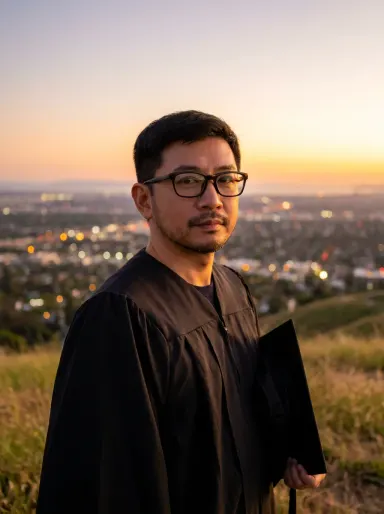
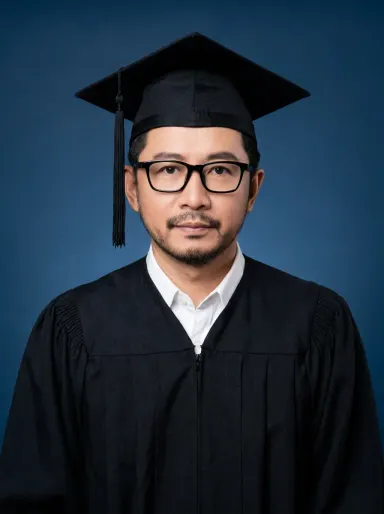
AI Graduation Photos turns a single portrait into a full graduation scene, placing you in the cap, gown and setting of your choice without a studio booking or a photographer. Upload one clear photo of yourself, pick a moment from the library, and the app builds a complete, photorealistic graduation portrait around your face, hair and glasses exactly as they are. It suits graduates, families sending announcements, and anyone who missed their ceremony or simply wants a sharper keepsake than the day produced.
How to use this app
- 1
Upload your file. There is no prompt you have to write.
- 2
Pick a look from the visual library, add a note of your own if you want one, then press Generate.
- 3
Watch your result appear in the gallery within moments.
- 4
Download, share, or generate again with a new idea.
What you can make
Ceremony Keepsake Without the Photographer
Many graduates leave with blurry phone snaps and an expensive official package that takes weeks to arrive. Upload a clear headshot, choose "University Steps" or "The Archway", and get back a sharp, detailed portrait that reads as a real ceremony photograph, ready to frame or share the same day.
Announcements and Social Posts
A LinkedIn announcement or a family group chat deserves something better than a candid. "Cap Toss" and "Gold Confetti" produce joyful, editorial-feeling images suited to social sharing, while "Studio Portrait" gives the clean, neutral look that works in a printed announcement card or a university alumni newsletter.
Missed or Remote Graduation Ceremonies
Distance learners, students who graduated during disrupted years, and those who could not attend their ceremony often have no portrait at all. AI Graduation Photos creates a complete scene from a single recent photograph, so they have something to mark the achievement even without the day itself.
Gifts for Graduating Family Members
A parent with a photo on their phone can produce a polished portrait of their child without waiting for official prints. Choose "Hilltop at Sunset" or "Flowers in Hand" for something warmer and more personal than a standard ceremony shot, and the default 3:4 portrait shape suits a large framed print.
Multiple Looks for One Graduate
A single ceremony produces one set of official images in one setting. AI Graduation Photos lets you try several moments from the library, from the formal "University Steps" to the relaxed "Campus Lawn", giving you a small portfolio of distinct portraits without any additional session fee.
Shots to try
Tips for better results
Upload from the Chest Up
The app keeps your face, hair, glasses and jewellery exactly as they appear in the source photo. A frame that shows you clearly from the chest upward gives it the most to work with. Very distant or heavily cropped shots reduce the detail it can preserve.
Let the Library Choose the Scene
Each tile in the library sets the outfit and the setting together as one composed moment. Choosing "Campus Lawn" gives you the lawn; choosing "The College Gates" gives you the gates. The optional text box is best used for small details, such as the colour of a ribbon or the warmth of the light, rather than trying to redirect the whole scene.
Choose the Shape and the Quality Before You Generate
The app defaults to a 3:4 portrait, the shape that suits framed prints and announcement cards. Switch to 1:1 for a profile picture, 9:16 for a story, or 16:9 if the image will sit as a wide banner. Deciding the shape before you generate means the whole scene is composed for it, rather than cropped into it afterwards. The Quality row sits right below and works the same way: HD is the default and is enough for an announcement sent by message, while 2K or 4K, at a higher credit cost, is what a graduation portrait needs if it is going to be printed, framed and handed to a parent.
Match the Mood to the Use
"Studio Portrait" and "University Steps" read as formal and suit framed prints or professional profiles. "Cap Toss", "Gold Confetti" and "Flowers in Hand" are warmer and more relaxed, better for social sharing or a personal gift. Choosing the right tile for the final use saves generating multiple versions.
When to choose this app
AI Graduation Photos does one specific thing: it takes your face and builds a complete, photorealistic graduation scene around it. If you need to restyle a room while keeping its walls and windows in place, AI Room Converter is the right tool. If you want to drop a new sky over an outdoor scene and match the ground-level lighting to it, AI Sky Replacement handles that. When the goal is a portrait that places you convincingly at your graduation, dressed for the ceremony and set in a credible scene, this app is the direct choice.
Frequently asked questions
Will my face actually look like me, or will it be a generic person in a gown?
The app preserves your facial features, skin tone, hair, glasses and jewellery from the photo you upload. The one thing it deliberately replaces is your clothing, which it swaps for the outfit tied to the library tile you chose. The result should be recognisably you in a graduation setting, not a stand-in.
Can I choose my own university or a specific campus building?
The app invents a scene to match the tile you pick: broad stone steps, a sunlit lawn, a leafy park. It does not reproduce a named institution or a specific real building, and the diploma appears as a plain rolled parchment with no university name on it. No real campus can be specified.
Will there be any text, a year or a university name visible in the image?
No. The app produces images with no writing anywhere: no banner, no lettered building sign, no year, no embroidered stole, no printed words of any kind. The diploma, where it appears, is a rolled parchment tied with ribbon and is never unrolled to show text.
Can I use the optional text box to change the gown colour or switch to academic robes from a different tradition?
The library tile sets the core outfit. The optional box works best for smaller details, such as the colour of the ribbon on the parchment or the tone of the light. Trying to replace the gown entirely with something outside the tile's description is likely to produce unpredictable results.
What kind of photo gives the best result?
A clear photo showing your face and upper body, taken in decent light with no heavy shadows across your face. The app works from chest-up framing. Very small, blurry or heavily cropped photos give it less facial detail to preserve, which can reduce how closely the result resembles you.
Can I create a graduation portrait of two people together from one upload?
AI Graduation Photos is built for one person per image. Upload a photo of one person, and the app builds a portrait around that individual. If you want a single picture of two people together, the photo together app is designed for exactly that: upload each person's photo there and describe the scene you have in mind.
Do I need any editing skills?
No. Upload your photo, pick the look you want from the library, and the app writes the full instruction for you behind the scenes. There is nothing to install and nothing to configure. A small optional box lets you add one line in your own words, but the app works without it.
Can I use the results commercially?
Yes. Content you generate is yours to use, subject to our content licenses.
How long does a generation take?
Most generations finish in under a minute, and you can watch progress live in the gallery.