Made with this app
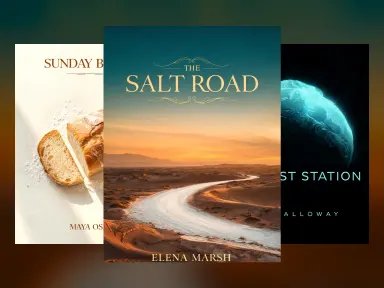
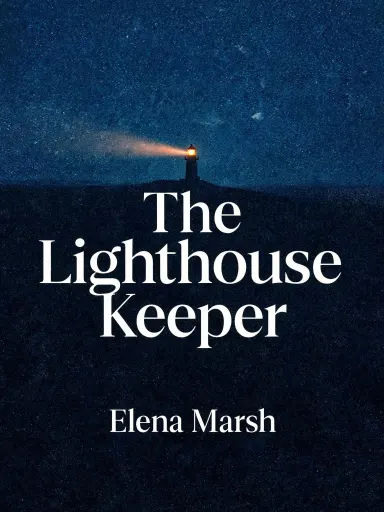
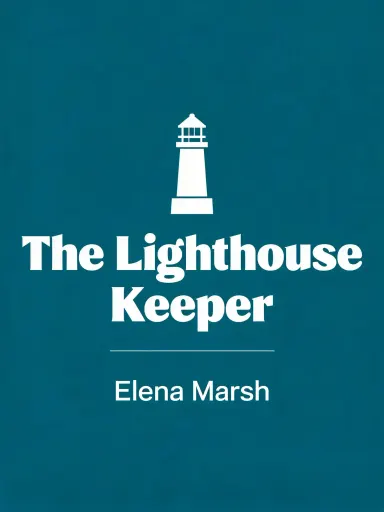
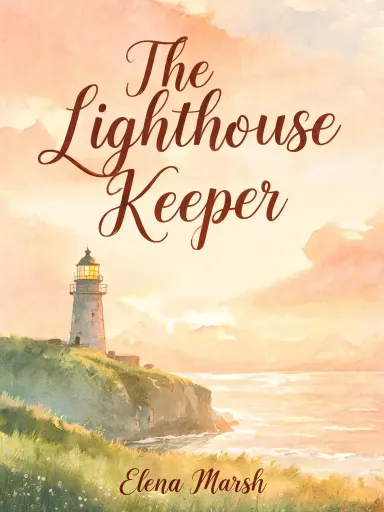
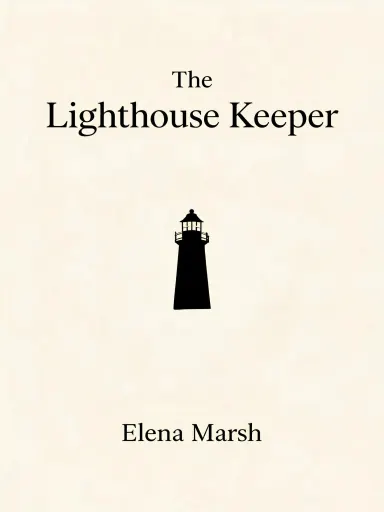
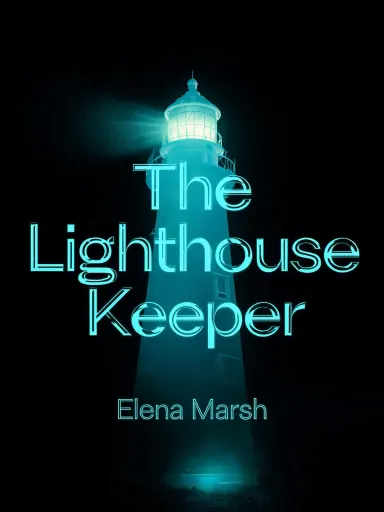
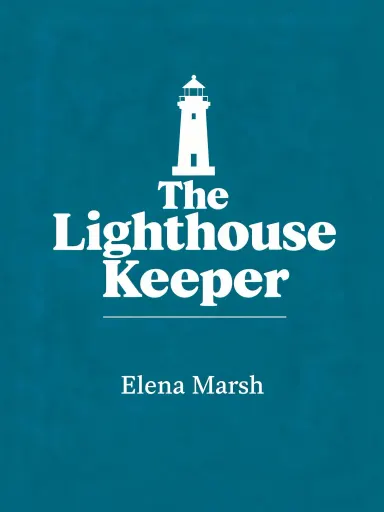
AI Book Cover turns a title and an author name into a finished front cover image without any design work on your part. Type your title, type your name, pick one of twelve genre looks, and the app draws the artwork and sets the lettering itself. The result is a 2304 by 3072 pixel flat cover image, large enough to print or upload to a retailer, suited to indie authors, small presses and anyone who needs a credible cover fast.
How to use this app
- 1
Upload your file. There is no prompt you have to write.
- 2
Pick a look from the visual library, add a note of your own if you want one, then press Generate.
- 3
Watch your result appear in the gallery within moments.
- 4
Download, share, or generate again with a new idea.
What you can make
Indie authors testing a concept
Before committing to a designer, an author can type their working title and try several looks in minutes. Choosing "Literary" versus "Thriller" shows immediately whether a title reads as quiet and cerebral or tense and cinematic, making it easier to brief a designer or decide the draft is already good enough.
Self-publishing directly to retailers
A self-publisher uploading to an ebook retailer needs a front cover image at a usable resolution. AI Book Cover returns a file large enough to meet most retailer requirements without resizing, and the title and author name are already set into the artwork, so there is nothing left to place in a separate tool.
Writing coaches and course creators
A coach producing a short guide or workbook can pick "Business" or "Memoir" and have a professional-looking cover for a PDF resource in the time it takes to type the title. The flat colour and clean type of those treatments reproduce clearly at screen resolution and in print.
NaNoWriMo and rapid drafting projects
Writers who want visual motivation while drafting can generate a cover for a novel-in-progress on day one. Seeing the title in "Fantasy" or "Young adult" treatment on a finished-looking cover makes the project feel concrete and helps maintain momentum through a long writing sprint.
Series branding across multiple titles
A writer with several books in the same genre can run each title through the same library choice to keep a consistent visual family. Choosing "Cosy mystery" for every entry in a series gives each cover the same palette, lettering style and illustration mood without any manual matching.
Shots to try
Tips for better results
Let the title do the work
The app reads your title and builds the artwork from it, so a specific, evocative title produces a more pointed cover than a vague one. The Lighthouse Keeper will come back with a lighthouse; a title like The Journey may come back with something generic. If your working title is a placeholder, refine it before generating.
Keep names short and exact
The app sets your title and author name exactly as typed, so spelling, spacing and capitalisation matter. Keeping the title under about 42 characters and the author name under about 28 gives the lettering room to be large and legible. A subtitle or series name typed into either box will crowd the cover.
Match the genre tile to your audience
Each library choice signals a genre to a browser before they read a word. Picking "Science fiction" for a space opera and "Romance" for a contemporary love story means readers recognise the book at a glance. Choosing a tile that clashes with the genre, even if it looks appealing, can confuse the audience a cover is meant to attract.
Stick to plain unaccented text for reliability
The app sets plain Latin titles and names with high accuracy. Accented characters are only about half reliable, so if your title or name includes accents the safest route is to type a version without them, then add the correct accents in your retailer's metadata field instead. Other alphabets are not all alike, and each one named here was fired at this model rather than assumed: Chinese, Thai, Russian and Ukrainian come back exactly as typed, so a title in one of those is never warned about. Arabic, Hebrew, Hindi, Bengali and Korean come back mangled. Japanese is the split case, because kanji and ordinary Japanese words are set correctly but an English word written in katakana is not.
When to choose this app
AI Book Cover is the right choice when you need a complete, print-sized front cover with the title and author name already set into the artwork, not a general image you would still need to typeset. Seedream v3 offers reliable text-to-image with guidance control, and Seedream 5.0 Pro offers deep-thinking image generation with on-image text, but neither is built around the specific structure of a book cover: a governed title position, a fixed genre look and a flat full-bleed format sized for retail upload. If your goal is a finished cover file rather than a raw image, this app is purpose-built for that job.
Frequently asked questions
Can I change where the title appears on the cover?
No. The app places the title at the top of the cover and the author name near the bottom, which is standard retail convention. Position is not a user choice, and the lettering is drawn into the artwork rather than sitting on a separate layer, so it cannot be moved or repositioned after the image is generated.
Can I add a subtitle or series name?
No. The app sets the title and author name only. Typing a subtitle into the title field will make it part of the main title lettering, which crowds the cover and reduces legibility. A series name or tagline typed into either field will behave the same way. Keep both fields to the intended title and name only.
What file size do I get back?
The app returns a 2304 by 3072 pixel image, which is large enough to meet most print-on-demand and ebook retailer requirements. It is a flat image file, not a print-ready PDF, and it does not include a spine, a back cover, bleed marks or a barcode.
How do the twelve library choices affect what is pictured on the cover?
Each choice sets the light, the palette, the medium and the lettering style, but the subject matter comes from your title. Choosing "Fantasy" gives you a painted dawn sky and ornamental gold type, but a title about a lighthouse will still show a lighthouse. The exception is "Cookbook", which always returns a food photograph regardless of the title.
Can I use this app to refresh a cover I already have?
No. The app generates a new cover from your typed title and chosen library option. It does not accept an existing image, it cannot redraw a cover you already own, and it cannot reproduce the same artwork with different wording. Every generation starts fresh from the text you type.
Will the cover work for a printed book as well as an ebook?
The image is large enough to print at standard paperback dimensions. A 6 by 9 inch trim is one crop away from the returned file. It does not include a spine or back cover, so it is suited to a front-cover-only upload rather than a full wraparound jacket. Check your printer's specific resolution and bleed requirements before uploading.
How much does it cost?
Each generation costs 1 credit. New accounts get free credits to try it out.
Do I need any editing skills?
No. Upload your photo, pick the look you want from the library, and the app writes the full instruction for you behind the scenes. There is nothing to install and nothing to configure. A small optional box lets you add one line in your own words, but the app works without it.
Can I use the results commercially?
Yes. Content you generate is yours to use, subject to our content licenses.
How long does a generation take?
Most generations finish in under a minute, and you can watch progress live in the gallery.