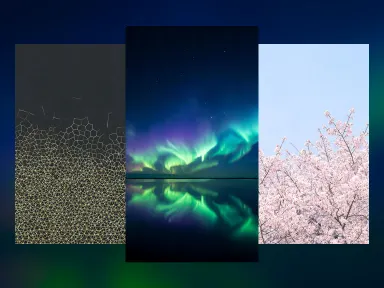
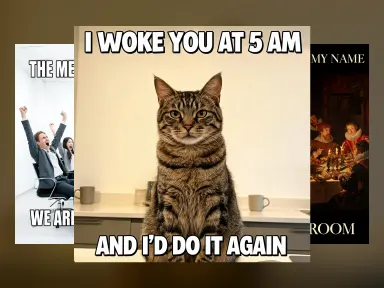
Made with this app
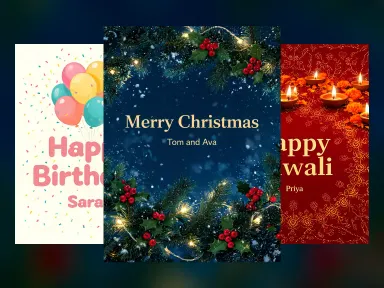
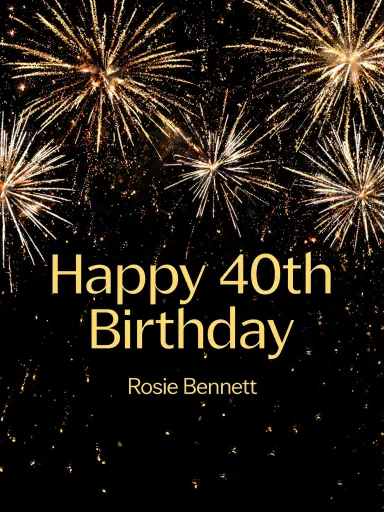
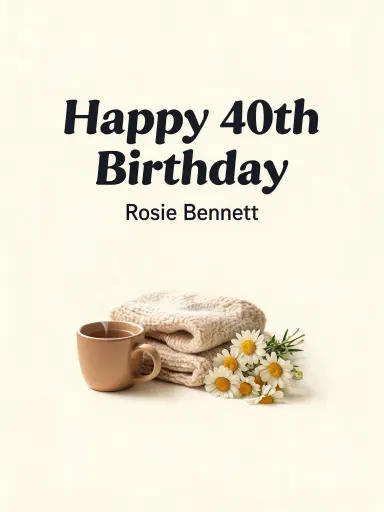
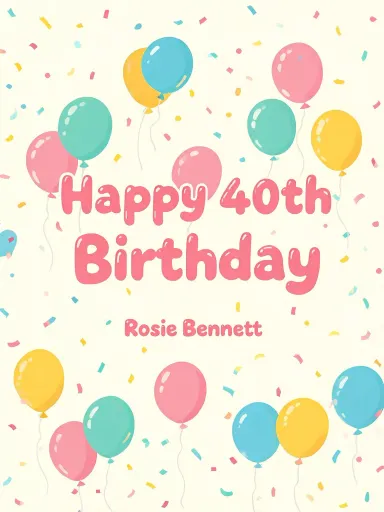
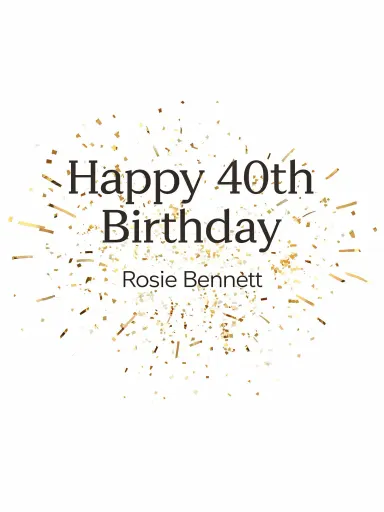
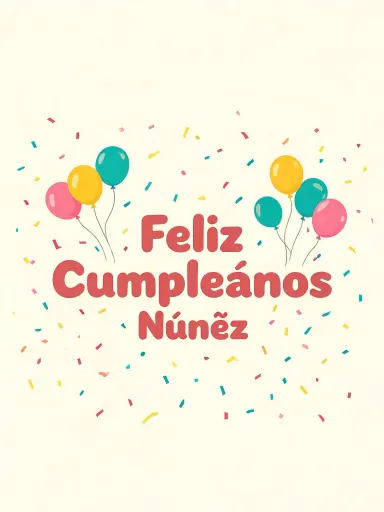
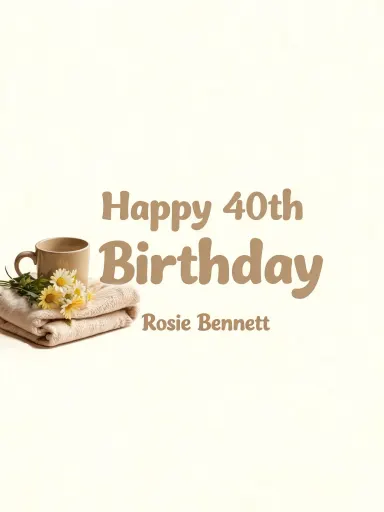
AI Greeting Card turns a typed greeting and a recipient name into a finished card front, ready to print or share. Pick one of twenty-five occasion tiles, from "Birthday" to "Farewell", type your words, and the app draws the greeting directly into the artwork at the resolution you need for a physical card. No design software, no font choices, no layout work. It suits anyone who wants a personal card without starting from a blank canvas.
How to use this app
- 1
Upload your file. There is no prompt you have to write.
- 2
Pick a look from the visual library, add a note of your own if you want one, then press Generate.
- 3
Watch your result appear in the gallery within moments.
- 4
Download, share, or generate again with a new idea.
What you can make
Printing a card at home
The output is a 2304 by 3072 pixel image, large enough to print at standard card size on a home inkjet or at a copy shop. Choose "Wedding" for a relative's big day, type the couple's names, and send the file straight to the printer.
Sending a digital card
For a friend abroad, a flat image shared by message or email works as well as a physical card. "Lunar New Year", "Eid" or "Diwali" each deliver vivid seasonal artwork with the greeting drawn in, ready to attach to any message.
Office and group occasions
When a team needs something presentable for a colleague's retirement or a manager's promotion, "Retirement" or "Congratulations" produces a polished card front in seconds, without needing a designer or a trip to a shop.
Seasonal card runs
"Christmas", "New Year" and "Valentine's Day" each have distinct artwork and lettering styles. Someone sending several cards across the season can move through occasions quickly, changing only the greeting and name each time.
Covering less common occasions
Cards for apologies or departures are rarely stocked in quantity. "Sorry" and "Farewell" cover those gaps with artwork that matches the tone: understated for an apology, quietly nostalgic for a send-off.
Shots to try
Tips for better results
Keep the greeting concise
The app sets the greeting most cleanly at up to 34 characters and the name at up to 30. Phrases like "Happy Birthday", "Congratulations" or "Merry Christmas" sit well within that. A very long phrase risks the lettering shrinking or a word being altered.
Stick to standard Latin letters
The app draws A to Z, digits and common marks like the ampersand and apostrophe accurately. Accented letters can come back with the wrong mark or none at all, so for an accented greeting the safest approach is to omit the accents.
Match the tile to the tone, not just the occasion
Each tile carries its own palette and lettering style. "Sorry" is intentionally quiet and spare; "Congratulations" is bright and bold. If the mood matters as much as the occasion, check the tile descriptions before choosing.
Crop for a standard envelope
The output is a 3 by 4 image. A standard 5 by 7 card fits inside that with a small crop: removing about 55 pixels from each long side gives a 2194 by 3072 image that prints at 5 by 7 at high quality, with none of the artwork lost.
When to choose this app
AI Greeting Card is the right choice when the output is a finished card front with real words drawn into the artwork. Seedream v3 and Seedream v4.5 both generate images from text but are general-purpose tools without occasion presets or the fixed card format this app produces. When you need a specific greeting, a specific name and a specific occasion set as a single print-ready image, AI Greeting Card does that in one step without any design work on your part.
Frequently asked questions
Can I use the same artwork tile with a different greeting than the occasion suggests?
Yes. The tiles set the picture, the palette and the lettering style, not the words. A "Birthday" tile will carry whatever greeting you type, so you could use it for any occasion that suits bright balloons and confetti. Whatever you type is what gets drawn.
Is the output the front of the card only, or does it include an inside and a back?
It is the front only, delivered as a flat image file. There is no inside, no back, no envelope template and no blank space for a handwritten message. To add an inside, you would pair this image with a separate document in any word processor or design tool.
Can I put a date, a verse or a longer personal message on the card?
No. The app draws the greeting and the name, and nothing else. It does not add a date, a rhyme, a verse or a signature, and those things cannot be requested through the name field or any other input. Anything beyond the greeting and the name belongs on the inside, which you would write by hand or type separately.
What file formats can I download, and how large is the output?
The app produces a single image at 2304 by 3072 pixels. That is large enough to print at standard greeting card size with good quality. The format available for download is shown on the result screen.
Can I generate a card in a language other than English?
You can type greetings in the standard Latin alphabet without accents. Accented characters often come back with the wrong mark or none at all, so for a Latin-alphabet greeting the safest approach is to omit the diacritical marks. Other alphabets are not all alike, and each one named here was fired at this model rather than assumed: Chinese, Thai, Russian and Ukrainian come back exactly as typed, so the app never warns about them. Arabic, Hebrew, Hindi, Bengali and Korean come back mangled. Japanese is the split case, because kanji and ordinary Japanese words are set correctly but an English word written in katakana is not. Any alphabet that has not been fired here is warned about by default, since unmeasured is not the same as safe.
Can I edit the lettering position or font after the card is generated?
No. The lettering is drawn into the artwork as part of the image, so it cannot be moved, resized or retyped afterwards. If you want different wording or a different size, generate a new card with the adjusted text.
How much does it cost?
Each generation costs 1 credit. New accounts get free credits to try it out.
Do I need any editing skills?
No. Upload your photo, pick the look you want from the library, and the app writes the full instruction for you behind the scenes. There is nothing to install and nothing to configure. A small optional box lets you add one line in your own words, but the app works without it.
Can I use the results commercially?
Yes. Content you generate is yours to use, subject to our content licenses.
How long does a generation take?
Most generations finish in under a minute, and you can watch progress live in the gallery.